


Docking panels for WinUI 3 applications: dockable tool windows with splitters and tabs, a tabbed MDI document area, Visual Studio-style drag-and-drop dock guides, floating windows, auto-hide, and layout serialization.
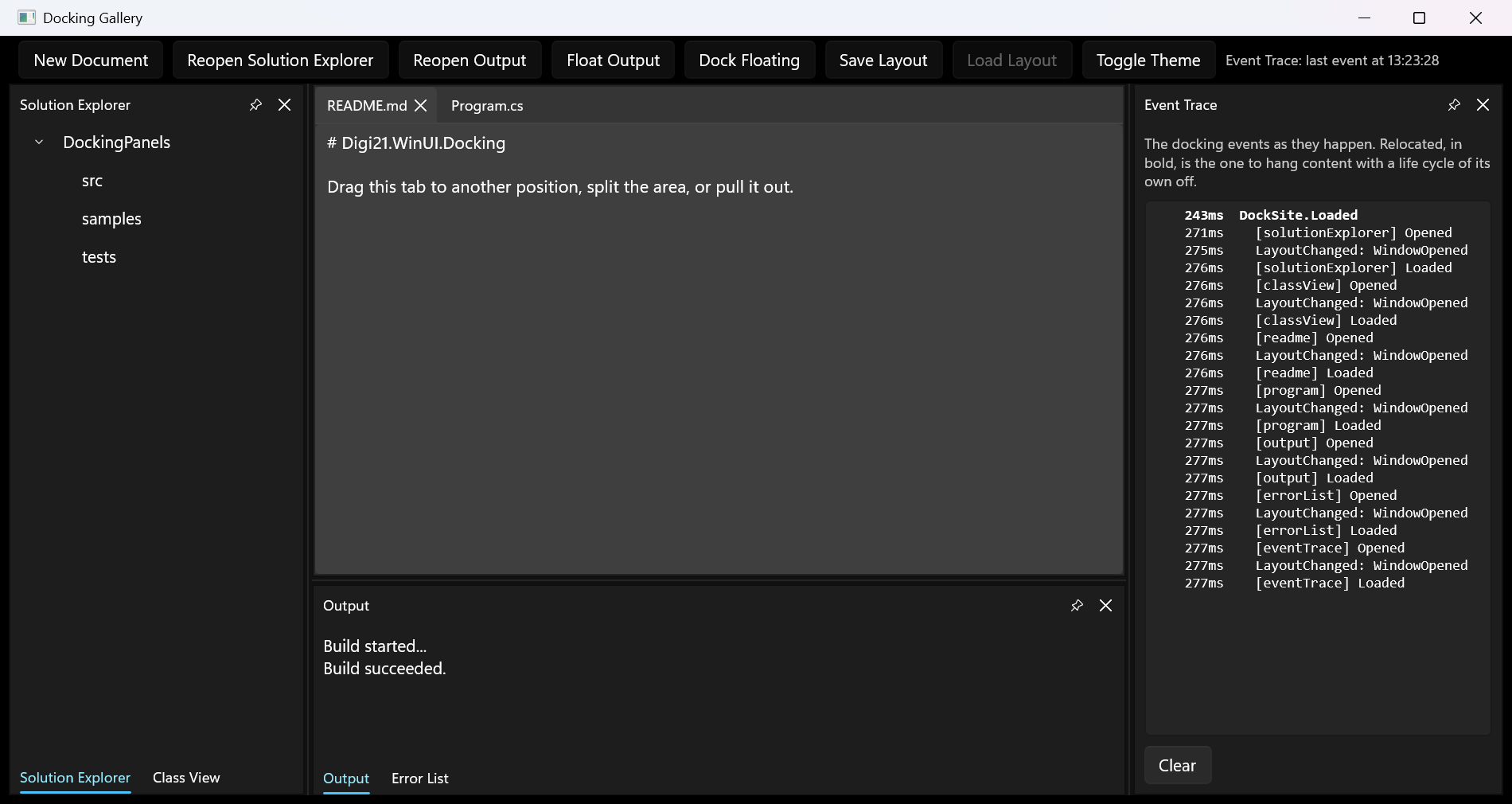
DockSiteroot control hosting a declarative docking layout.ToolWindowpanels dockable to any side of the document area or of each other, by code or by dragging.- Proportional resizing with splitters (
SplitContainer+DockSite.RelativeSize). - Multiple tool windows in one container become tabs; switching tabs preserves control state.
- Tabbed MDI document area (
DocumentHost): documents open as tabs, split into as many tab groups as needed, are reordered by dragging their tabs, and can be floated out. - Drag & drop re-docking with Visual Studio-style dock guides and drop previews.
- Floating tool windows in real top-level windows, across monitors.
- Docking inside a floating window: it takes drops with its own dock guides and holds a layout of split panes and tabs, like a small dock site.
- Auto-hide (unpin) tool windows to the dock site edges, with a slide-in flyout.
- Save and restore the docking layout as XML (
DockSiteLayoutSerializer), including the document area, auto-hidden groups, floating window positions and their inner layout. - Cancelable close, activation tracking, and layout-change events on
DockSite. - A
Relocatedevent on every element that carries application content, for hosting aSwapChainPanel, aWebView2or anything else with a life cycle of its own. - Light, dark, and high-contrast aware out of the box (built on WinUI theme resources), and recolorable through the library's own brush keys.
- Windows App SDK 1.8 or later.
- .NET 8 or later.
- Windows 10 version 1809 (build 17763) or later.
dotnet add package Digi21.WinUI.Docking
<Window
    x:Class="MyApp.MainWindow"
    xmlns="http://schemas.microsoft.com/winfx/2006/xaml/presentation"
    xmlns:x="http://schemas.microsoft.com/winfx/2006/xaml"
    xmlns:docking="using:Digi21.WinUI.Docking">

  <docking:DockSite x:Name="DockSite">
    <docking:SplitContainer Orientation="Horizontal">

      <docking:ToolWindowContainer docking:DockSite.RelativeSize="0.25">
        <docking:ToolWindow Title="Solution Explorer" SerializationId="solutionExplorer">
          <TreeView />
        </docking:ToolWindow>
        <docking:ToolWindow Title="Class View" SerializationId="classView">
          <ListView />
        </docking:ToolWindow>
      </docking:ToolWindowContainer>

      <docking:SplitContainer docking:DockSite.RelativeSize="0.75" Orientation="Vertical">

        <docking:DocumentHost docking:DockSite.RelativeSize="0.7">
          <docking:DocumentContainer>
            <docking:DocumentWindow Title="README.md" SerializationId="readme">
              <TextBox AcceptsReturn="True" />
            </docking:DocumentWindow>
          </docking:DocumentContainer>
        </docking:DocumentHost>

        <docking:ToolWindowContainer docking:DockSite.RelativeSize="0.3">
          <docking:ToolWindow Title="Output" SerializationId="output">
            <TextBlock Text="Build succeeded." />
          </docking:ToolWindow>
        </docking:ToolWindowContainer>
      </docking:SplitContainer>

    </docking:SplitContainer>
  </docking:DockSite>

</Window>
Windows in the same ToolWindowContainer become tabs. Users can re-dock any window by
dragging its tab or title bar: dock guides appear over the hovered target (dock to any side,
or drop on the center guide to attach as a tab) and at the edges of the whole dock site.
DocumentHost is the central area documents live in, the equivalent of the editor area of Visual
Studio: tool windows dock around it and never inside it, and documents never dock outside it.
It holds a layout tree of DocumentContainer tab groups, so dropping a document on the side
guide of a group splits the area into a new tab group, and dragging a tab along a tab strip
reorders it or moves it to another group. A document dropped away from every guide floats into
its own window, and can be dragged back — the empty area takes drops too, so the last document
can always be brought home.
dockSite.OpenDocument(document);            // open in the active tab group
dockSite.DocumentHost?.OpenDocument(document);   // same, on a specific area

document.Float();                           // pull it out into its own window
document.Dock();                            // send it back where it came from
document.Close();                           // cancelable via DockSite.WindowClosing

var active = dockSite.ActiveDocument;       // last activated document
var open = dockSite.DocumentHost?.Documents;     // documents across all tab groups
An application without documents can use Workspace instead: a plain content area that tool
windows dock around. Both can appear in the same layout.
A window is torn off as soon as the drag leaves its tab strip: it floats out there and then, and
the rest of the drag moves that real window, so what follows the cursor is the window itself with
its live content rather than a placeholder. Releasing it over a dock guide docks it again;
releasing it anywhere else leaves it floating, on any monitor. Floating windows are owned by the
application window, so they stay above it, stay out of the taskbar, and close with it. Dragging
their caption back over the dock site shows the same dock guides as any other drag, and
double-clicking a title bar floats a docked window and docks a floating one back where it came
from. Windows with CanFloat="False" cannot be torn off, so they are dragged with a small ghost
and can only be dropped on a dock guide.
A floating window is a docking surface of its own: dragging a window over it shows the same dock guides, so the drop can split it into panes or attach the window as a tab of one of them. With a single tool pane, the pane's title bar is the window's caption; once it holds several panes (or a document group, which has no title bar), the window gets a caption of its own, which drags and docks the whole group as before, while each pane's title bar drags only that pane.
outputWindow.Float();                   // float it near the dock site
dockSite.FloatWindow(outputWindow);     // same, from the dock site
dockSite.FloatWindow(outputWindow, new RectInt32(2200, 300, 480, 640));  // explicit screen bounds

outputWindow.Dock();                    // back to the position it was floated from
If your application ever closes its window from code — a File > Exit command, a confirmation dialog that decides to quit — close the floating windows first:
Closed += (_, _) => DockSite.CloseFloatingWindows();They are owned windows, and letting them be destroyed alongside their owner tears down their XAML
islands during the owner's own teardown, which ends the process with 0xC000027B and no managed
exception. The dock site handles the close the user asks for by itself; the one the application
asks for raises no event a control can reach in time, so this one line is yours. It costs nothing
when there is no floating window open.
outputWindow.AutoHide();   // collapse the whole pane to its nearest edge
outputWindow.Dock();       // pin it back where it was
Unpinned windows become tabs on the dock site edge; clicking a tab slides the window over the
layout until it loses focus. Set CanAutoHide="False" (or CanFloat="False") on a tool window
to hide the affordance and block the operation.
An application that sets up its initial layout from the dock site's Loaded can call these
straight from there, as many times as it likes: a window whose own Loaded has not run yet is not
attached to its dock site at that moment, and the operation waits for it instead of being dropped.
Every docking operation — docking, auto-hiding, floating, loading a layout — rebuilds part of the
XAML tree, and the elements that survive it are moved rather than recreated. WinUI announces those
moves through Loaded and Unloaded, but it raises them in that order, so the last event an
application sees for an element that never left the tree is Unloaded. Content that stops itself
there — a render loop, a media player, a swap chain — stops for good, with nothing to show for it.
Workspace, DocumentHost, ToolWindow and DocumentWindow therefore raise Relocated once
the tree has settled, after the whole batch of Loaded and Unloaded events, and only for
elements that are still part of a layout:
viewerWorkspace.Relocated += (_, _) => RestartRenderLoop();Reloading a layout that has not changed moves nothing, and raises nothing.
This one is worth spelling out, because the symptom is a frozen last frame that looks like a hang.
Moving a SwapChainPanel in the XAML tree gives it a new composition visual, and the swap
chain stays attached to the old one, so nothing it renders reaches the screen any more. This is
WinUI's behavior, not the library's, and it applies to any host: the panel has to be told about
its new visual by calling ISwapChainPanelNative::SetSwapChain again.
viewerWorkspace.Relocated += (_, _) =>
{
    // The panel has a new composition visual: bind the swap chain to it again.
    var native = swapChainPanel.As<ISwapChainPanelNative>();
    native.SetSwapChain(IntPtr.Zero);      // release the binding to the old visual
    native.SetSwapChain(swapChain);
};WebView2, MediaPlayerElement and Win2D's CanvasControl hold comparable resources; hang their
recovery off the same event.
// Dock to an edge of the whole dock site (also reopens closed windows).
dockSite.DockToolWindow(outputWindow, DockSide.Bottom);

// Dock beside another window's container.
dockSite.DockToolWindow(outputWindow, solutionExplorer, DockSide.Right);

// Attach as a tab next to another window.
dockSite.AttachToolWindow(outputWindow, solutionExplorer);

outputWindow.Activate();
outputWindow.Close(); // cancelable via DockSite.WindowClosingGive every tool window and document a stable SerializationId, then:
var serializer = new DockSiteLayoutSerializer();

string xml = serializer.SaveToString(dockSite);   // or SaveToFile / SaveToStream

serializer.ToolWindowResolving += (_, e) =>
{
    // Optional: create windows on demand for ids that are not registered yet.
    e.ToolWindow = CreateToolWindow(e.Id);
};
serializer.DocumentResolving += (_, e) =>
{
    // Documents opened at runtime are recreated the same way.
    e.Document = OpenDocument(e.Id);
};
serializer.LoadFromString(dockSite, xml);         // or LoadFromFile / LoadFromStream
Restoring the saved layout from the dock site's Loaded works, which is where an application
usually has one to restore into. Every element the load moves raises Relocated once the tree has
settled — see below — so content with a life cycle of its own comes back with it.
Only the structure is saved (splits, proportions, tab order, selection, the document tab groups, auto-hidden groups, and the screen bounds of floating windows together with the layout inside them). Window instances and their content are matched by id and reused, so control state survives a reload. Floating windows are restored on a monitor that exists, so a layout saved with two monitors still loads on one. Layouts written by earlier versions are still read.
A load rebuilds the layout out of the elements it is already made of, so reloading a layout that has not changed moves nothing at all.
What happens to windows that are open but absent from the loaded layout is decided by
UnresolvedWindowBehavior: Close (the default) closes them, DockLeft keeps them at the left
edge. Two things are never dropped, whatever the setting says:
- Windows declared with
CanClose="False". The user cannot close them from the interface, so a layout file does not get to either — there would be no way back, and saving the layout on the way out would make it permanent. - The
WorkspaceandDocumentHostelements declared in XAML. They belong to the application rather than to the layout, so a layout that does not mention them gets them back at the edge of whatever it does describe.
The chrome follows the light, dark and high-contrast themes with no setup. Every color it paints
with has a key of its own, so recoloring it means redefining those keys — in a dictionary merged
into Application.Resources, which is the only place WinUI honors theme dictionaries:
<ResourceDictionary.MergedDictionaries>
  <XamlControlsResources xmlns="using:Microsoft.UI.Xaml.Controls" />

  <ResourceDictionary>
    <ResourceDictionary.ThemeDictionaries>
      <ResourceDictionary x:Key="Default">
        <SolidColorBrush x:Key="DockingPaneBackgroundBrush" Color="#102A43" />
        <SolidColorBrush x:Key="DockingTitleBarActiveBackgroundBrush" Color="#C50F1F" />
      </ResourceDictionary>
      <ResourceDictionary x:Key="Light">
        <SolidColorBrush x:Key="DockingPaneBackgroundBrush" Color="#FFF4E5" />
        <SolidColorBrush x:Key="DockingTitleBarActiveBackgroundBrush" Color="#B4009E" />
      </ResourceDictionary>
    </ResourceDictionary.ThemeDictionaries>
  </ResourceDictionary>
</ResourceDictionary.MergedDictionaries>
The full list of brushes and metrics, and how to retemplate a control, is in docs/theming.md.
The samples/DockingGallery
app demonstrates all features and is the easiest way to try the library: clone
the repository and run
dotnet build
dotnet run --project samples/DockingGallery
Its Event Trace panel records Loaded, Unloaded, Relocated, LayoutChanged and the
open/close notifications as they happen, which is the order that matters when hosting content with
a life cycle of its own: WinUI raises Loaded before Unloaded for a window that merely moves, so
the last event that content sees is the unload one. Drag a window between panes, float it, pin it to
an edge or load a layout, and watch which of those gestures is followed by Relocated.
Issues and pull requests are welcome: see CONTRIBUTING.md. What changes between versions is recorded in CHANGELOG.md.